Best GTA 6 Settings for PS5 and Xbox: What to Change First
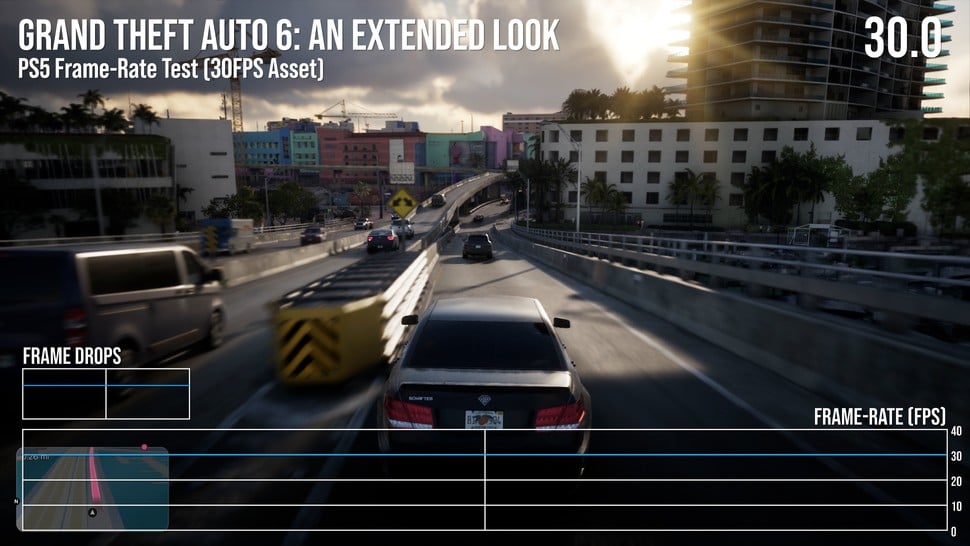
No — GTA 6 does not have a Performance Mode, and no setting on PS5 or Xbox will unlock 60 FPS. Rockstar targets 30 FPS on PS5, PS5 Pro, Xbox Series X and Xbox Series S, and that is Confirmed. What the settings menu can do is make that 30 FPS feel far smoother and more responsive: less blur, tighter sticks, a calmer camera and a properly set-up TV. This guide covers the changes that actually matter, in the order you should make them.
There is no performance mode — here is what you get instead
When pre-loads went live, Rockstar confirmed a 30 FPS target across all consoles, with no frame-rate or quality toggle in the Display menu. We covered that announcement in our post on GTA 6 running at 30 FPS on PS5 and Xbox.
What differs between consoles is resolution and stability. Digital Foundry's launch testing (Reported) measured roughly 1440p on PS5, PS5 Pro and Series X, with the Pro upscaling via PSSR and adding ray-traced shadows. Series S renders much lower — around 720p, upscaled to roughly 1080p — and dips below 30 FPS more often. So "performance vs fidelity" in GTA 6 is really a question of which console you own, not which mode you pick.
Change these settings first
These are the in-game tweaks recommended across launch-week settings guides (Reported, based on the launch menus). Defaults are the PS5 values; the Xbox menus use the same options.
- Motion Blur Strength: 3 → 1. The single biggest visual win. At 1 the image stays much clearer when you swing the camera or take a corner fast. Drop it to 0 if you want maximum sharpness.
- Stick dead zones: 4 → 2–3. The default dead zone is large, which makes aiming and steering feel sluggish. Lower it a step at a time until small stick movements register, without the camera drifting on its own.
- Look and aim sensitivity: up 1–2 steps. Pairs with the dead-zone change — turns and target tracking feel noticeably quicker.
- Cinematic Kill Shot and Vehicle Crash camera frequency: 3 → 0–1. Stops the camera seizing control mid-fight or mid-chase. Set both to 0 if the cutaways annoy you.
- Default Movement Speed: Walk → Jog. Full stick input moves at a jog instead of a walk, which makes general traversal feel less heavy.
- Targeting: Partial, Aim Assist Strength 3–4. Partial targeting with moderate assist is the sweet spot most guides recommend; switch to Lock-On if you are new to the series.
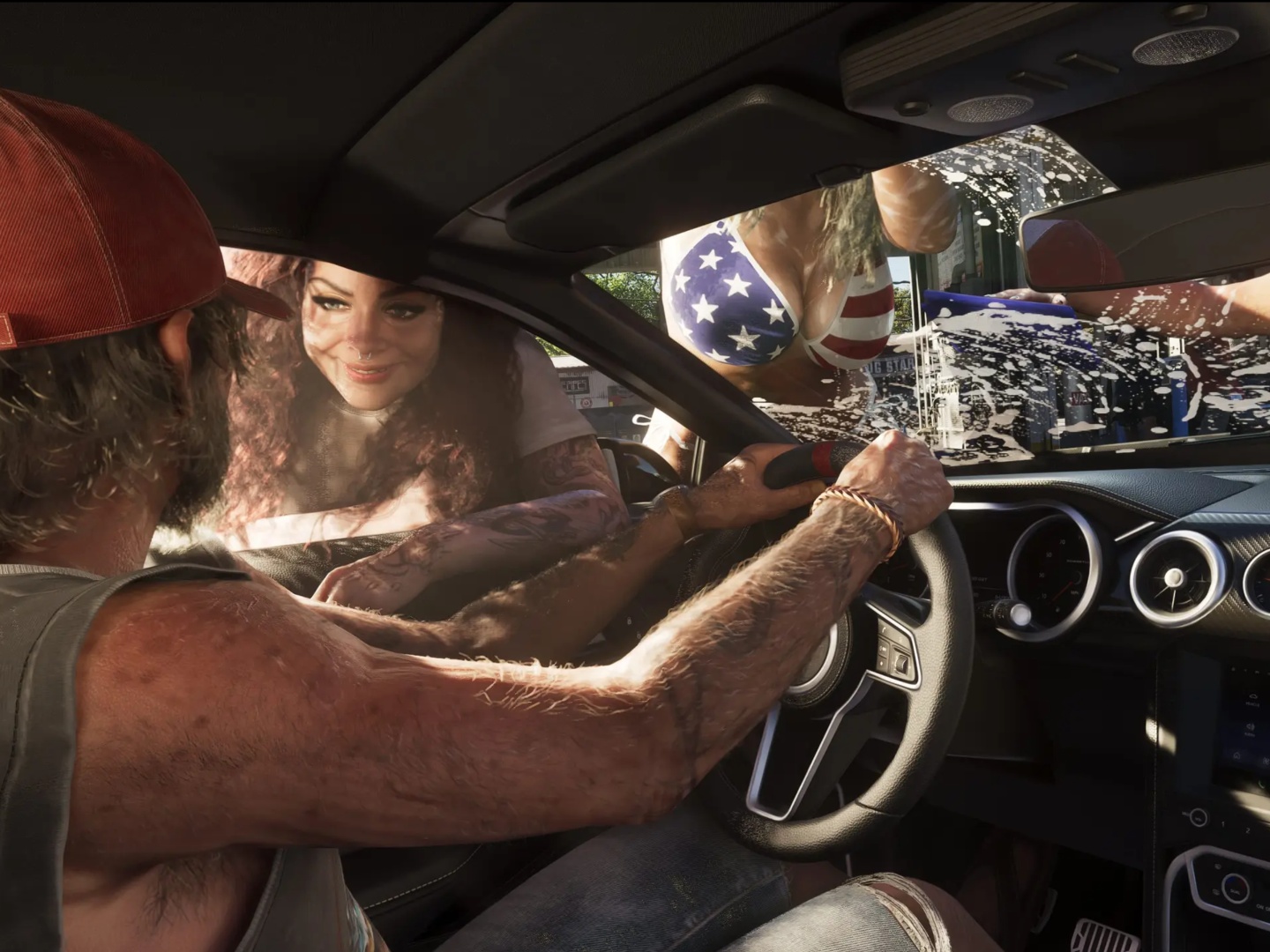 The PS5 Pro is the smoothest way to play at launch, thanks to PSSR upscaling — via Notebookcheck.
Your TV matters more than the menu
Because the frame rate is capped, display lag is where most of the "heavy" feeling comes from — and that is fixable outside the game:
- Turn on Game Mode (or ALLM) on your TV and switch motion smoothing off. This is the highest-impact change on this page.
- Calibrate HDR on the console first (PS5's Adjust HDR, or the Xbox HDR Game Calibration app), then use the in-game brightness screen.
- On Xbox Series X, use a 120 Hz output with VRR if your TV supports it. Digital Foundry found this makes the game feel slightly smoother — it does not raise the 30 FPS cap, but it softens the dips.
- Check the control scheme. The Default layout puts sprint on L3; the Classic scheme restores the GTA 5 layout (X/A to sprint). Pick whichever your hands already know.
- HUD: the default Dynamic HUD hides the minimap and health until you tap down on the D-pad. If you keep losing track of your health or cash, switch it to always-on.
PS5 Pro and Series S notes
On PS5 Pro there is nothing extra to enable — PSSR and the ray-traced shadows are automatic, and the Pro simply holds 30 FPS the most consistently (Reported). On Series S, the settings above matter most: motion blur at 1, dead zones down, and Game Mode on your TV will do more for you than anything else, because the console has the least headroom.
The short version
1. Accept 30 FPS — there is no mode to find. 2. Motion Blur to 1, dead zones to 2–3, sensitivity up a step or two. 3. Kill the cinematic camera cutaways. 4. Game Mode on, motion smoothing off, HDR calibrated. 5. Then go play — and when you are ready to explore, our interactive Leonida map is the fastest way to learn the state.